Most companies start tracking laptops in a spreadsheet. And for a team of five, that is perfectly reasonable.
You create a Google Sheet or Excel file, add employee names, laptop details, serial numbers and assignment dates. Everyone knows where to find the information, and updating it does not take much time.
Then the team grows.
You have 30 employees working across different cities or countries. Someone gets a replacement laptop. Another employee moves to a new address. A third leaves the company, but nobody updates the device record.
Before long, the spreadsheet has gaps.
If you’re at this stage, you don’t necessarily need expensive software. You may just need a better-organised inventory and a clear process for maintaining it.
We’ve put together a free laptop inventory spreadsheet template for remote teams. It includes a device registry, a change log and fields that help you keep track of laptops across locations.
Here’s what it includes, how to use it, and when a spreadsheet may no longer be enough.
1. What Should Your Laptop Inventory Spreadsheet Include?
A useful laptop inventory spreadsheet should answer five basic questions:
- What devices does the company own?
- Who is currently using each device?
- Where is each device located?
- What is its current status?
- What has happened to it over time?
You can build your inventory in stages. Start with the essential information, then add fields as your team grows.
Tier 1: The minimum information every device needs
These are the fields that make a spreadsheet an actual device inventory.
| Field | Why it matters |
|---|---|
| Device ID or asset tag | Gives every laptop a unique reference that travels with it through every reassignment and repair |
| Make and model | Identifies the hardware so your team knows what they’re looking at |
| Serial number | Helps distinguish between devices of the same model and is required for warranty and insurance claims |
| Assigned employee | Shows who currently has the laptop and is accountable for it |
| Assignment date | Records when the device was issued and anchors the device history |
| Current status | Shows whether the device is assigned, in storage, under repair or retired |
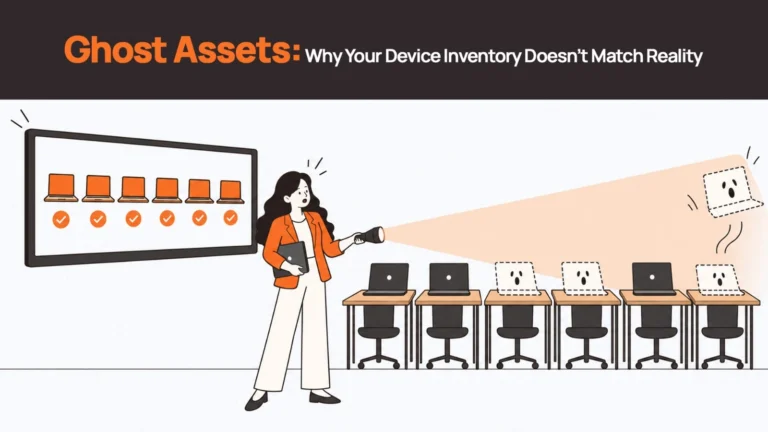
Without these fields, it becomes difficult to confirm what the company owns and who is responsible for each device. Ghost assets — devices that appear in records but cannot be located — almost always trace back to missing or stale data in these core fields.
Tier 2: Information remote teams should add
Remote teams need a little more detail because devices move between people and locations.
| Field | Why it matters |
|---|---|
| Ship-to address | Helps coordinate delivery and future retrieval — must be updated when an employee moves |
| Country and time zone | Adds location context for logistics and helps determine applicable data-handling obligations |
| Purchase date and price | Supports purchase records, depreciation tracking and refresh planning |
| Warranty expiry | Makes warranty planning easier and flags devices approaching end of coverage |
| Operating system and version | Helps IT understand the device environment and prioritise security updates |
Remember to update the address when an employee relocates or a laptop is reassigned. The original delivery address may no longer be useful months later.
Tier 3: Fields that help with ongoing management
Once the basics are in place, consider adding:
- MDM enrolment status
- Last confirmed date
- Last audit date
- Repair or service ticket reference
- Expected refresh date
One rule applies to every tier: don’t add a field unless someone is responsible for maintaining it. An empty column does not improve your inventory.
2. Why Remote Teams Need More Than a Standard Inventory Template
A basic computer inventory spreadsheet is often designed around an office environment. Devices are purchased, handed to employees and stored in one location.
Remote teams work differently.
The address problem
An office-based company may have one delivery address. A remote-first company may have employees in several cities and countries.
Your spreadsheet should record the delivery address at the time of assignment and provide a way to update it when the employee moves or the device changes hands. Teams that skip this step often discover the gap only when they need to coordinate laptop retrieval — by which point the contact details may be months out of date.
For retrieval coordination, you may also want an optional employee contact field and the employee’s manager.
Keep personal contact information restricted to people who genuinely need it. Avoid collecting more information than your process requires.
The location problem
Knowing that a laptop belongs to an employee is not the same as knowing where it is.
For distributed teams, country and location details help with delivery planning, return coordination and understanding where devices are being used.
A laptop assigned to an employee in Singapore may need a very different return process from one assigned to an employee in London.
The handover problem
Devices sometimes move between employees without the inventory being updated.
An employee may leave a laptop with a colleague, or IT may issue a replacement while the original device is still being investigated.
Add a Last Confirmed Date field. It gives your team a record of when the assignment and device details were last checked.
For most small and growing teams, a quarterly review is a useful starting point. Adjust the frequency based on your device activity and internal requirements.
| Related Reads |
| → Laptop Asset Management Software: A Practical Buying Guide A practical buying guide for teams evaluating asset management tools at every level. |
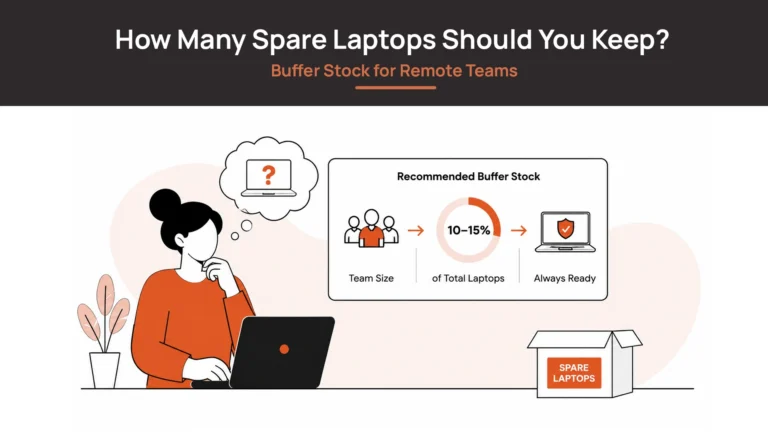
| → How Many Spare Laptops Should You Keep? Buffer Stock for Remote Teams How to size your device buffer so you are never waiting on procurement at every hire. |
| → Device Lifecycle Management Guide What happens to a device’s data after retrieval — and what a certified wipe actually proves. |
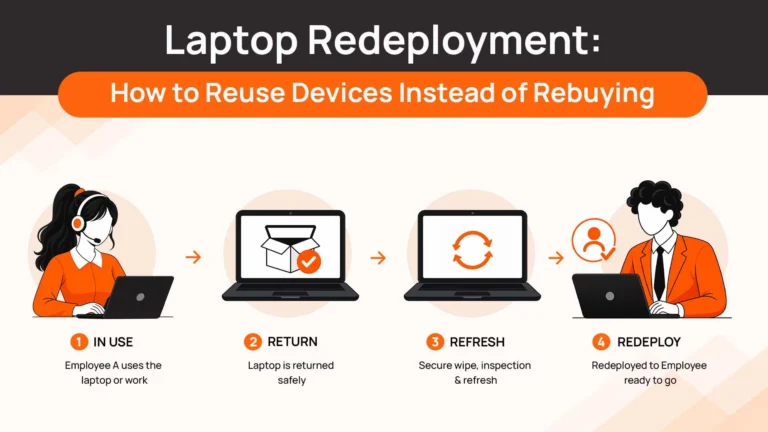
| → Where Do Retrieved Laptops Go? The post-retrieval path: storage, redeployment or responsible disposal. |
| → Zero-Touch Deployment for Remote Teams How device deployment can happen without IT physically touching the hardware. |
3. Download the Free Laptop Inventory Spreadsheet Template
You don’t have to build the workbook from scratch.
We’ve created an Excel template with three tabs to help remote teams get started.
Download the Laptop Inventory Spreadsheet Template
Here’s how it’s organised.
Tab 1: Device Registry
This is your main inventory. Use one row for each physical laptop.
It includes the essential device information, employee assignment, location, purchase details, warranty information and optional tracking fields.
The Current Status column has a dropdown with six options:
- Assigned
- In Storage
- In Repair
- In Transit
- Awaiting Retrieval
- Decommissioned
Using dropdowns keeps status labels consistent. Without them, one person might type “In Repair”, another might write “Repair”, and someone else might enter “Being Fixed”. These small differences make filtering and reporting harder.
Tab 2: Change Log
The registry tells you the current status of a laptop. The Change Log helps you understand how it got there.
Add a new entry whenever a device is:
- Purchased or delivered
- Assigned to an employee
- Reassigned to someone else
- Moved to a new location
- Sent for repair
- Returned or retrieved
- Placed in storage or decommissioned — this is also when secure data wiping should be confirmed and recorded
Each entry records the date, Device ID, action, previous and new status, person responsible and any relevant ticket or reference.
This is important because changing a device’s current status should not erase its history.
Tab 3: Read Me
The workbook also includes a short instruction tab covering how to use the fields, maintain the records and protect sensitive information.
A few formatting choices are deliberate:
- Dates use YYYY-MM-DD to avoid confusion between international date formats.
- Status fields use dropdowns to keep entries consistent.
- The core registry does not rely on formulas that could break when rows are edited.
- The Change Log keeps a record of updates instead of relying on overwritten cells.
What the template cannot do: It will not automatically detect when a laptop moves, send warranty alerts, trigger a courier pickup or confirm that a device has physically been returned. Those actions still depend on people and processes.
Frequently Asked Questions
What should a laptop inventory spreadsheet include?
At minimum — device ID, make/model/serial number, assigned employee, assignment date, and current status. For remote teams, add ship-to address, country, purchase date, warranty expiry, and OS version. Once those tiers are stable, consider adding MDM enrolment status, last confirmed date, repair ticket reference, and expected refresh date.
How do I track company laptops in Google Sheets?
Create a Device Registry tab with one row per device and a Change Log tab with one row per status change. Use dropdowns for the Current Status field and format all dates as YYYY-MM-DD to avoid ambiguity across international teams. Avoid formulas in the core registry — they break when unfamiliar users insert or delete rows. Assign one named owner to maintain the registry and define the five events that require an immediate update: new hire, departure, repair, address change, and retirement.
When should a company switch from spreadsheets to asset management software?
Common triggers are managing more than 50 devices, operating devices across more than five countries, high employee turnover where the change log becomes the primary document, or repeated audit failures where the spreadsheet and your MDM or physical count do not match. At that point, the question is no longer how to fix the spreadsheet — it is what to replace it with.
4. How to Keep Your Laptop Inventory Spreadsheet Accurate
Downloading the template is the easy part. Keeping it accurate is where the real work begins.
For a team managing up to around 50 devices, the following process is a practical starting point.
Assign one person to own the registry
Someone needs to be responsible for maintaining the main device records.
That person does not necessarily have to make every update. HR, procurement and IT can all provide information. But there should be one clear owner who checks that updates are recorded correctly.
Define the events that require an update
Don’t leave it to people to decide when the spreadsheet needs changing.
Set five clear update triggers:
- New hire: Record the laptop when it is assigned and delivered.
- Employee departure: Update the status and start the return process — do not wait until after the last day.
- Repair or replacement: Record the repair, replacement or device swap.
- Location change: Update the employee’s location and relevant delivery details.
- Retirement or disposal: Record the final status and supporting reference.
The update should happen when the event takes place, not weeks later when someone remembers.
Review the inventory every quarter
Compare the spreadsheet with your available MDM device list, purchase records and employee information. For teams without MDM, use employee confirmations or physical checks where possible.
Investigate differences rather than assuming one system is always correct.
For example, a laptop missing from an MDM list is a discrepancy to investigate. It does not automatically mean the device is lost. It may have been unenrolled, replaced, repaired or retired without the inventory being updated.
Record the review date and any outstanding actions.
5. When Is a Spreadsheet No Longer Enough?
A spreadsheet can work well for a small team. The challenge is knowing when maintaining it takes more effort than the value it provides.
Here are some practical warning signs.
| Warning sign | Why it matters |
|---|---|
| More than 50 devices | Manual updates and quarterly checks may become harder to manage consistently |
| Devices across more than five countries | Delivery and retrieval require coordination that goes well beyond a device record |
| Frequent employee joining and leaving | Assignments and returns create a steady stream of updates that the spreadsheet cannot trigger automatically |
| Repeated inventory discrepancies | Your spreadsheet may no longer be a reliable source of truth — consistent gaps often indicate a process problem, not just a data problem |
| No clear owner | Updates become dependent on individual memory and communication rather than a defined process |
These are decision-making signals, not universal cut-offs. A company with 30 laptops across eight countries may need more operational support than a company with 100 laptops in one office.
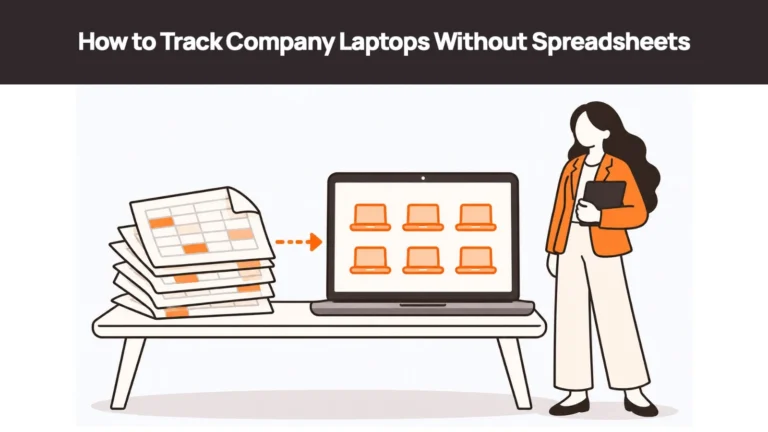
When the problem moves beyond maintaining records, a spreadsheet is no longer the right tool for the entire process. For a deeper look at the alternatives, see How to Track Company Laptops Without Spreadsheets.
This is where Remoasset fits. It supports global laptop procurement and retrieval across 80+ countries, helping distributed teams coordinate device-related operations beyond the inventory record. Its HRIS-triggered workflows and retrieval support are designed to reduce the manual coordination involved when employees join or leave.
| The Spreadsheet Will Drift Without a Process Behind It A template gives you structure — columns, dropdowns, a change log. But if no one is named as owner, if updates do not happen at the event, and if the quarterly audit never gets scheduled, the spreadsheet drifts within months. The template is a starting point. The process is what keeps it accurate. |
Start With a Clear Record, Then Build From There
A laptop inventory spreadsheet is a good starting point for a growing remote team. It gives you a central place to record devices, assignments, locations and changes.
The important part is building a process around it. Every device event needs an owner, every change needs to be recorded, and the inventory needs to be checked regularly.
As your team expands across locations, you may need more than a spreadsheet to manage the physical movement of devices.
See how Remoasset handles device lifecycle for distributed teams.