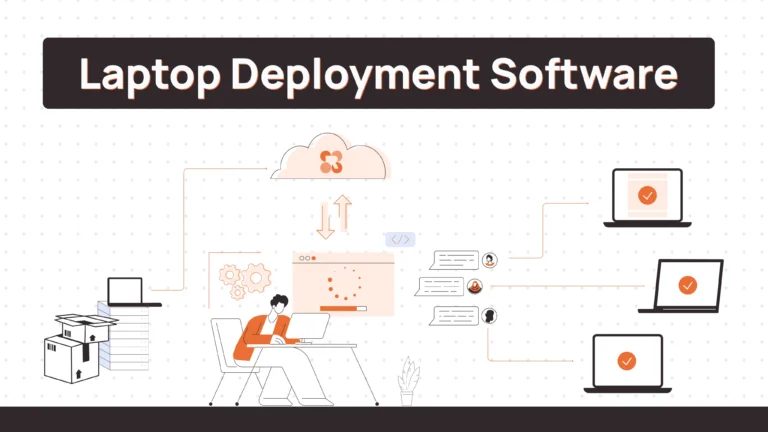
Choosing the right zero-touch deployment software is what separates a 10-minute setup from a two-hour troubleshooting session. Here is what that gap looks like in practice.
You hire two people the same week. One gets a MacBook. One gets a Windows laptop. Both should arrive pre-configured and ready to use on day one.
The Mac works perfectly. Employee opens it, signs in with their Apple ID, and everything configures automatically — email, apps, security settings. Done in 10 minutes.
The Windows laptop? Different story. Autopilot enrollment fails. Employee sees a generic setup screen. They are stuck. They message IT. IT remote-connects to fix it manually. What should have been zero-touch becomes a two-hour troubleshooting session.
This is where zero-touch breaks in practice.
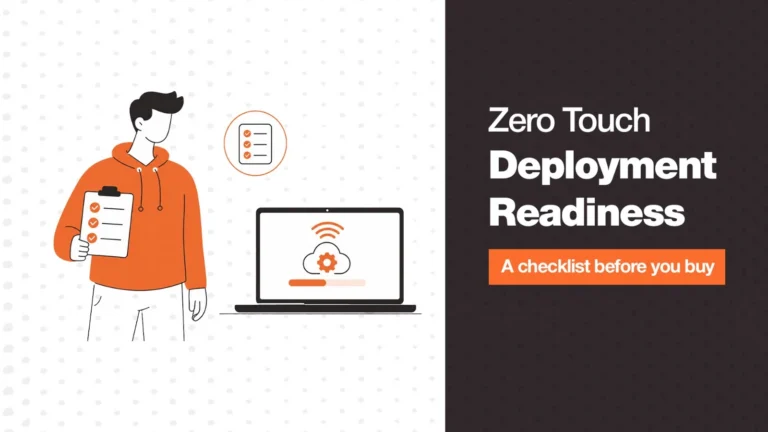
What Is Zero-Touch Deployment
Once you understand what is supposed to happen, the failures make more sense.
Zero-touch deployment means a device ships directly to an employee and configures itself automatically when they first log in. No IT involvement. No manual setup. The employee unboxes it, signs in, and everything they need is already there — apps, settings, security policies.
The promise is simple: IT manages everything remotely. Employees get working devices without needing technical knowledge.
When it works, it is seamless. When it breaks, you are back to manual setup.
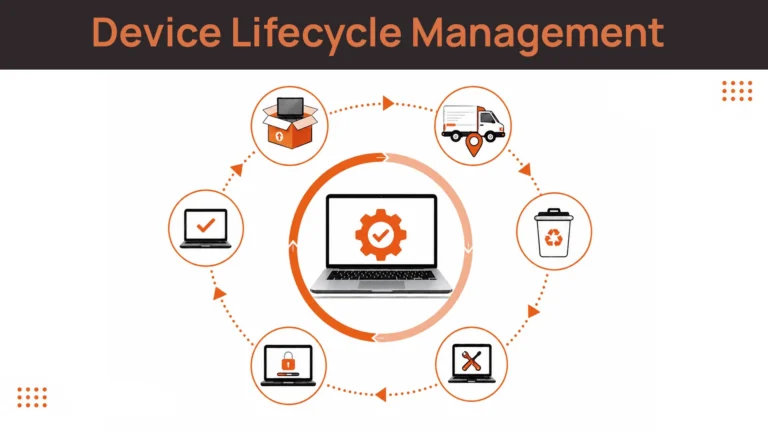
How Zero-Touch Deployment Actually Works Step by Step
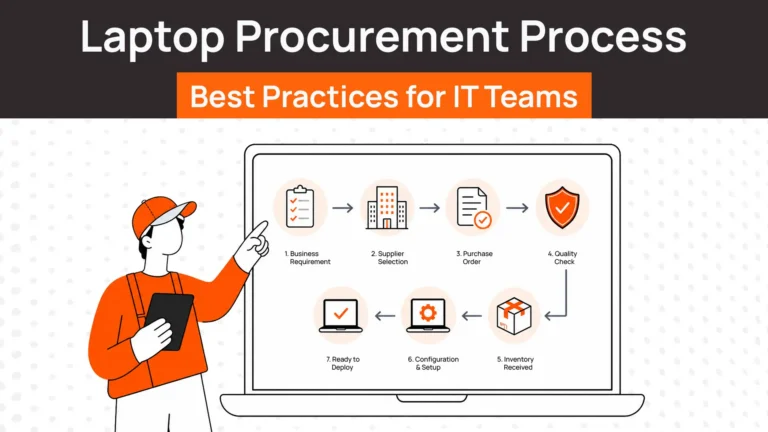
Before evaluating tools, here is what needs to happen for zero-touch to work end-to-end.
Step 1: Device procurement
Someone orders the laptop. Could be IT, could be a device management platform. The device needs to be the right model with the right specs.
Step 2: Pre-enrollment
Before shipping, the device gets enrolled in your MDM system. For Windows, that is Windows Autopilot. For Mac, it is Apple Business Manager. This enrollment links the device to your organisation before anyone touches it.
Step 3: Shipping
Device ships directly to the employee address. Could be across the street or across the world. Customs, carriers, tracking — all logistics handled.
Step 4: First login
Employee receives the device, powers it on, and logs in with their work credentials. That login triggers the enrollment.
Step 5: Automatic configuration
MDM pushes everything automatically — apps, security policies, VPN, certificates, permissions. No manual steps. Employee goes from unboxing to working in minutes.
The key point: all five steps need to work together. Most zero-touch failures happen because one step breaks or is not connected to the others.
Where Zero-Touch Deployment Breaks in Real Teams
Understanding common failure points helps you choose tools that actually prevent them.
Enrollment failures
Device is not properly enrolled before shipping. Employee logs in and gets a standard consumer setup instead of your corporate configuration. Now IT has to manually enroll it remotely or the device comes back for reimaging.
Wrong configurations
Device enrolls successfully but gets the wrong configuration profile. Sales employee gets engineering setup. Apps do not match their role. IT has to fix it manually.
Shipping delays
Employee start date is Monday. Laptop arrives Thursday. They cannot work for three days. Zero-touch does not matter if the device is not there.
Cross-border issues
International shipping introduces customs delays, import taxes, incorrect documentation. An employee in Brazil waits three weeks for a laptop that should take five days.
Lack of clear ownership
Who is responsible for enrollment — IT or procurement? Who tracks shipping? Who confirms the employee received a working device? When nobody owns the full workflow, steps get missed.
OS-specific problems
Windows Autopilot requires specific firmware versions and network connectivity. Apple Business Manager needs devices purchased through authorised resellers. Get either wrong and enrollment fails silently.
These failures compound when you are onboarding multiple people across different countries with different device types.
What to Look for in Zero-Touch Deployment Software
Evaluating zero-touch deployment software means checking whether it solves configuration AND logistics.
OS support
Works with both Windows (Autopilot) and macOS (Apple Business Manager). Bonus if it also handles Chrome OS or Linux.
MDM integration
Connects with your existing mobile device management platform (Intune, Jamf, Kandji, Hexnode, Miradore) or provides its own.
Enrollment automation
Devices get enrolled before shipping without manual IT intervention. Pre-enrollment should happen as part of procurement.
Global deployment capability
Ships devices internationally with customs handling, local carriers, and cross-border logistics. Domestic-only does not work for distributed teams.
Configuration management
Lets you define different profiles by role, department, or location. One configuration does not fit everyone.
Visibility and tracking
Shows device status from order through delivery. You know where every device is and whether setup succeeded.
Failure handling
Clear process when enrollment or configuration fails. Alerts IT. Provides troubleshooting guidance.
Most tools handle configuration. Few handle the procurement and logistics that make zero-touch actually work.
| 📚 Related Read → Zero Touch Deployment: Guide for Modern Device Operations → Best Laptop Deployment Software for Remote & Global Teams (2026) |
Best Zero-Touch Deployment Software for Laptops
When evaluating zero-touch deployment software, start with the platform tools that handle OS-level enrollment, then consider full deployment platforms that manage the entire workflow.
1. Microsoft Intune
Microsoft Intune is Microsoft cloud-based MDM that integrates with Windows Autopilot for zero-touch Windows deployment. Manages apps, security policies, and compliance for Windows, macOS, iOS, and Android devices.
Key Features
- Windows Autopilot integration for automated Windows setup
- Cloud-based device management across platforms
- App deployment and policy enforcement
- Conditional access and compliance policies
- Integration with Microsoft 365 and Entra ID
Best For
Organisations already using Microsoft 365 wanting native Windows zero-touch. Companies managing diverse device types (Windows, Mac, mobile) through one platform.
Pricing
Intune is included in most Microsoft 365 enterprise plans — check Microsoft’s site for current pricing.
2. Jamf
Jamf specialises in Apple device management with deep macOS and iOS integration. Handles zero-touch deployment through Apple Business Manager for automated Mac setup.
Key Features
- Apple Business Manager integration for zero-touch Mac deployment
- Automated enrollment and configuration for macOS and iOS
- App distribution and patch management
- Security and compliance for Apple devices
- Self-service app catalogue for employees
Best For
Apple-focused organisations or companies with significant Mac deployments. Teams wanting the deepest possible macOS management and automation.
Pricing
Custom pricing based on device count. You can request a quote from the Jamf website.
3. Remoasset
Remoasset handles complete laptop deployment and MDM enrollment with zero-touch deployment integrated across procurement, shipping, and configuration globally. Supports Windows Autopilot and Apple Business Manager, with enrollment completed before the device ever leaves the warehouse.
The distinction matters. Most zero-touch deployment software stops at the configuration layer and assumes the device is already in the employee’s hands. Remoasset owns the part of the workflow where deployments usually break — sourcing the right device locally, pre-enrolling it, and landing it before day one.
Key Features
- Works with the MDM you already run — native integrations with Jamf, Intune, Kandji, Hexnode and Miradore, so zero-touch enrollment does not require migrating your MDM stack
- 80+ countries of coverage, with operational depth in APAC and the Middle East — regions where most deployment platforms fall back on third-party resellers and lose visibility at the border
- A written 3-day replacement guarantee, backed by 24/7 Total Care+ support — if a device arrives faulty, the replacement commitment is contractual, not best-effort
- Global device procurement with pre-enrollment completed before shipping
- Real-time tracking from order through delivery and first login
- Full lifecycle coverage including retrieval, NIST 800-88 certified data wiping, and redeployment
Best For
Distributed companies hiring across multiple countries that need zero-touch deployment to work as part of the full lifecycle, not as an isolated MDM feature. Particularly relevant for teams with headcount in APAC or the Middle East, where local procurement and customs handling determine whether day-one setup actually happens.
Pricing
Available pay-as-you-go or on an annual subscription from $1,499/year. See the Remoasset pricing page for details.
4. Hexnode
Hexnode provides unified endpoint management supporting Windows Autopilot, Apple Business Manager, and Android zero-touch enrollment. Cross-platform MDM for organisations managing multiple device types.
Key Features
- Zero-touch provisioning for Windows, Mac, Android, iOS
- Unified policy management across all platforms
- Automated app deployment and updates
- Kiosk mode and custom configurations
- Geofencing and location tracking
Best For
Organisations managing Windows, Mac, and mobile devices wanting one MDM platform. Teams needing flexible deployment options across different OS types.
Pricing
Per-device monthly pricing with tiered feature plans. Current pricing is listed on the Hexnode website.
5. Workwize
Workwize manages the full device lifecycle including zero-touch deployment as part of broader device management. Handles procurement, enrollment, shipping, and configuration internationally.
Key Features
- Automated device procurement and pre-enrollment
- Global shipping with customs handling
- MDM integration (Intune, Jamf, Hexnode)
- Zero-touch deployment for Windows and Mac
- Full lifecycle management from deployment to retrieval
Best For
Mid-size to enterprise companies (100–500 employees) wanting zero-touch as part of complete asset lifecycle management rather than just MDM.
Pricing
Per-seat subscription plus platform fees. Pricing information is available on the Workwize website.
Related Read: Best Workwize Alternatives & Competitors
Comparison Table for Zero-Touch Deployment Tools
Understanding what each tool actually handles helps you match capabilities to your needs. For a broader view of how deployment fits into the full device lifecycle management picture, see our complete guide.
| Tool | OS Support | MDM Capability | Enrollment Automation | Logistics Support | Best For |
|---|---|---|---|---|---|
| Microsoft Intune | Windows, Mac, iOS, Android | Full MDM platform | Windows Autopilot native | No | Microsoft 365 organisations |
| Jamf | macOS, iOS | Apple-focused MDM | Apple Business Manager native | No | Apple-centric deployments |
| Hexnode | Windows, Mac, iOS, Android | Cross-platform MDM | All major zero-touch protocols | No | Multi-OS environments |
| Workwize | Windows, Mac | MDM integration | Via partner MDMs | Global | Full lifecycle with zero-touch |
| Remoasset | Windows, Mac | Native integrations: Jamf, Intune, Kandji, Hexnode, Miradore | Pre-enrollment before shipping | Global (80+ countries) | Lifecycle + procurement + logistics |
Which Tool Is Right for You?
If the comparison table above still leaves you deciding between two options, the shortcut is to start from your environment rather than the feature list.
| If you are… | Choose | Why |
|---|---|---|
| A Microsoft-first shop already on Microsoft 365 | Microsoft Intune | Autopilot is native, licensing is likely already covered, and there is no second vendor to manage. |
| Apple-first, or Mac-majority | Jamf | The deepest Apple Business Manager integration available, with macOS controls no cross-platform MDM matches. |
| Running mixed Windows, Mac and mobile from one office | Hexnode | One cross-platform console covering every zero-touch protocol, without paying for two MDMs. |
| A distributed global team hiring across countries | Remoasset | Configuration is the easy part when your hire is in Dubai or Manila. Procurement, pre-enrollment and customs are the hard part — that is what Remoasset covers across 80+ countries. |
The pattern is straightforward: if your gap is device configuration, buy an MDM. If your gap is getting the right device to the right person in the right country before their start date, an MDM will not solve it.
| Managing zero-touch deployment across multiple countries? Remoasset pre-enrolls devices in your existing MDM — Jamf, Intune, Kandji, Hexnode or Miradore — and delivers them across 80+ countries, backed by a written 3-day replacement guarantee. |
Why Zero-Touch Matters for Remote Teams
Beyond convenience, zero-touch deployment fundamentally changes how distributed teams operate.
Faster onboarding
Employee starts day one with a fully configured device instead of waiting days for IT to manually set it up. First impression matters.
Less IT workload
IT defines configurations once, then every device deploys automatically. No manual setup per employee. The team scales without IT headcount scaling proportionally.
Consistent setups
Every employee gets exactly the same configuration for their role. No variation based on which IT person did the setup. Reduces security gaps and support issues.
Remote readiness
Employees anywhere in the world can receive and activate devices without visiting an office or having local IT support. Critical for distributed teams.
For companies with 10 employees in one city, manual setup works fine. For companies with 100 employees across 20 countries, zero-touch is the only way to scale.
How to Get Started with Zero-Touch Deployment
Moving from manual setup to zero-touch requires planning but does not need to be overwhelming.
Step 1: Choose your tools
Decide whether you need just MDM (Intune, Jamf, Hexnode, Kandji, Miradore) or a full deployment platform (Remoasset, Workwize). For context on how deployment fits into the full device lifecycle, our lifecycle guide covers each stage in detail.
Step 2: Enroll with platform providers
For Windows, set up Windows Autopilot and register your Microsoft tenant. For Mac, enroll in Apple Business Manager and link your MDM. This is one-time setup.
Step 3: Define configuration profiles
Create templates for different roles — sales, engineering, support. Include apps, security settings, VPN, certificates. Test on a few devices before rolling out broadly.
Step 4: Test the workflow
Order a few devices. Go through enrollment, shipping, and first login. See where it breaks. Fix those gaps before scaling.
Step 5: Scale gradually
Start with new hires in one department. Once that works smoothly, expand to more teams and eventually all onboarding. For a checklist that covers the people and IT coordination side, see our guide to remote employee onboarding.
The key is treating zero-touch as a workflow, not just a feature you turn on.
Which Zero-Touch Deployment Software Is Right for Your Team?
Most zero-touch deployment software solves the configuration problem — getting apps and settings to install automatically. That is important, but it is only part of the workflow.
The choice comes down to which gap you are actually closing:
- If the gap is configuration, an MDM closes it. Intune for Microsoft environments, Jamf for Apple-first teams, Hexnode or Miradore for mixed fleets, Kandji for Apple teams wanting a lighter alternative to Jamf.
- If the gap is everything around configuration — sourcing the device in-country, enrolling it before it ships, clearing customs, and getting it there before the start date — no MDM will close it. That is a logistics problem, and buying more MDM will not fix it.
For distributed teams, the second gap is almost always the real one. If procurement delays the device, zero-touch does not matter — the employee still cannot work. If enrollment never happened before shipping, you are back to manual setup regardless of how good your MDM is.
This is where Remoasset makes the difference. Instead of treating zero-touch deployment as just the configuration step, Remoasset handles the complete workflow — procurement, pre-enrollment in the MDM you already run, delivery across 80+ countries, tracking, retrieval and redeployment — backed by 24/7 Total Care+ support and a written 3-day replacement guarantee.
Zero-touch deployment is not just MDM configuration. It is software plus logistics plus workflow working together. When all three align, employees anywhere in the world receive working devices on day one without IT manually touching anything.
FAQs
What is the best zero-touch deployment software for global remote teams?
For teams hiring across borders, the deciding factor is not MDM features — every major MDM handles configuration competently. It is whether the platform can procure, pre-enroll and deliver the device in the country where your hire actually lives. Remoasset covers 80+ countries with enrollment completed before shipping and native integrations with Jamf, Intune, Kandji, Hexnode and Miradore, so zero-touch behaves the same way in Manila as it does in Manchester. Intune and Jamf remain strong choices for the configuration layer itself, but neither handles procurement or cross-border logistics.
What is zero-touch deployment in simple terms?
Zero-touch deployment means a device configures itself automatically when an employee first logs in. No manual IT setup. The device ships pre-enrolled in your systems, and everything — apps, security, settings — installs automatically on first use.
How is it different from traditional setup?
Traditional setup requires IT to manually configure each device before giving it to an employee. Zero-touch removes that step. IT defines configurations once, then every device deploys automatically following those templates.
What happens if setup fails?
If enrollment or configuration fails, the employee typically sees a standard consumer setup screen instead of your corporate configuration. IT gets alerted and must either troubleshoot remotely or have the device sent back for manual enrollment.
Do employees need technical knowledge?
No. Zero-touch is designed for non-technical users. They unbox the device, power it on, log in with their work credentials, and everything configures automatically. That is the whole point.
Can it work without MDM?
No. Zero-touch requires mobile device management software to push configurations automatically. Windows uses Autopilot with Intune or another MDM. Mac uses Apple Business Manager with Jamf, Kandji or a similar tool.
Can zero-touch deployment work without Jamf or Intune?
Yes. Kandji is a common Apple-first alternative to Jamf, and Hexnode and Miradore both support cross-platform zero-touch enrollment. Remoasset integrates natively with all five — Jamf, Intune, Kandji, Hexnode and Miradore — so you can run zero-touch deployment on whichever MDM your team already uses. What you cannot skip is having an MDM of some kind, because zero-touch needs something to push configuration on first login.
Is it different for Windows and Mac?
Yes. Windows uses Windows Autopilot. Mac uses Apple Business Manager. Both achieve the same outcome but use different enrollment mechanisms, so you need platform-specific setup for each.
What is Windows Autopilot?
Windows Autopilot is the Microsoft zero-touch deployment service for Windows devices. IT registers device hardware IDs with Microsoft, and when the device connects to the internet it automatically joins your Entra ID tenant and applies Intune policies.
How does Apple Business Manager work?
Apple Business Manager lets you purchase Apple devices that are automatically enrolled in your MDM when activated. Devices bought through authorised resellers can be added to your account. First login triggers automatic configuration.
Is it worth it for small teams?
It depends on your definition of small. For 5–10 employees in one location, probably not worth the setup effort. For 20 or more employees, or any distributed team, the time savings compound quickly.
What are the costs?
MDM platforms are typically priced per device per month depending on feature tier. Full deployment platforms that include procurement and logistics are usually priced per employee or on an annual subscription. Expect a one-time setup effort of several hours to configure enrollment and profiles.
Can it work globally?
The configuration layer works globally. The logistics layer of procurement, shipping and customs requires a platform with international capability, and not all zero-touch deployment tools handle global shipping.
What are the biggest challenges?
Enrollment failures, configuration mistakes, logistics delays, and cross-platform complexity between Windows and Mac. Most issues come from setup and logistics rather than the technology itself.