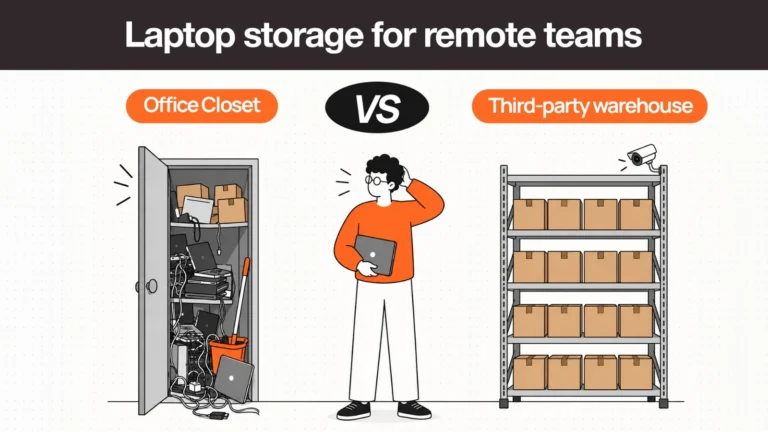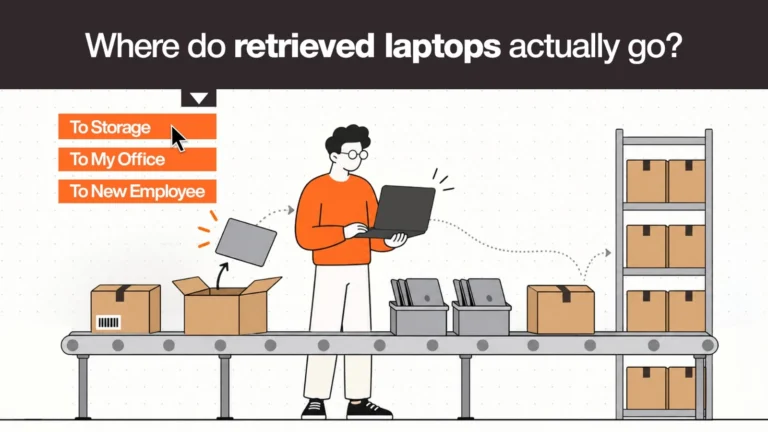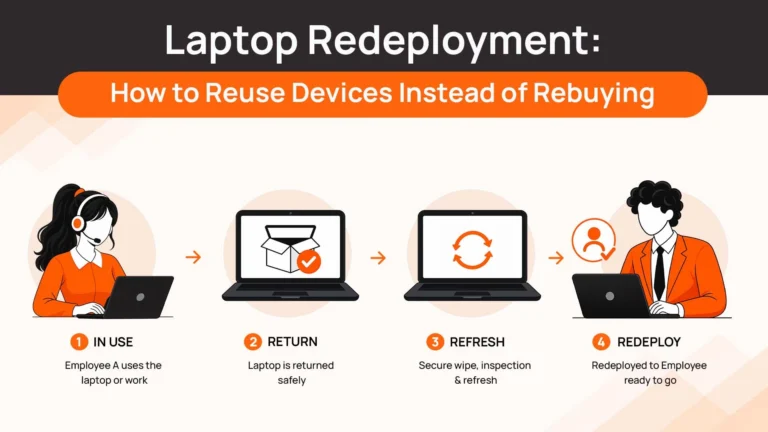
The laptop is back. It’s sitting on the IT shelf. And now the real work begins.
Most companies treat retrieval as the finish line. Get the device back, check the box. But what happens after retrieval determines whether that laptop becomes a working asset for your next hire, or an expensive dust collector.
The questions IT needs to answer immediately:
- Is the device in working condition or does it need repairs?
- Is company data still on it?
- Can another employee use it as-is, or does it need work?
- If it needs work, is refurbishing worth the cost?
Getting clear answers to these quickly and consistently is what separates companies that spend $1,500 on new laptops every hire from companies that spend $150 refurbishing a returned one.
Why Businesses Refurbish and Redeploy Laptops
The math is straightforward.
A returned 2-year-old MacBook Pro costs roughly $150-200 to refurbish and reimage. A new one costs $1,500-2,000. For a company doing 50 hires a year with a 70% successful retrieval rate, that’s 35 devices potentially back in circulation.
At $150 per refurbish versus $1,500 per new purchase, you’re looking at $47,250 in savings annually, before accounting for resale value of devices that don’t meet redeployment standards.
Beyond cost, refurbishment helps with onboarding speed. A refurbished device ready in your inventory ships to a new hire the same day HR confirms a start date. A new procurement order takes 2-3 weeks.
There’s also device life extension. Most business laptops are genuinely functional for 3-4 years. Refurbishing them extends useful life without compromising performance.
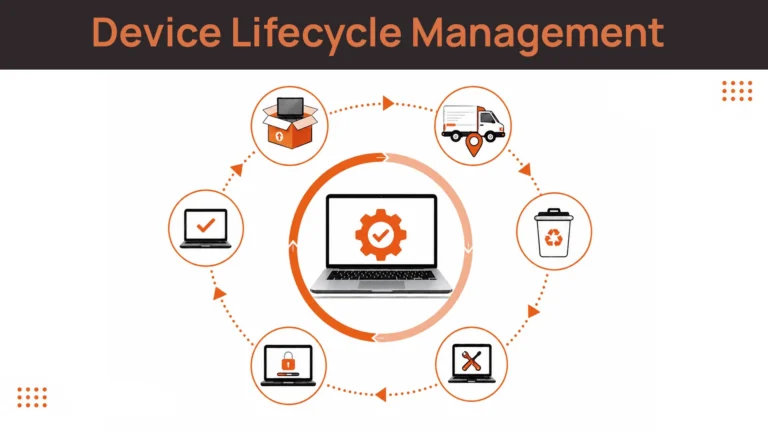
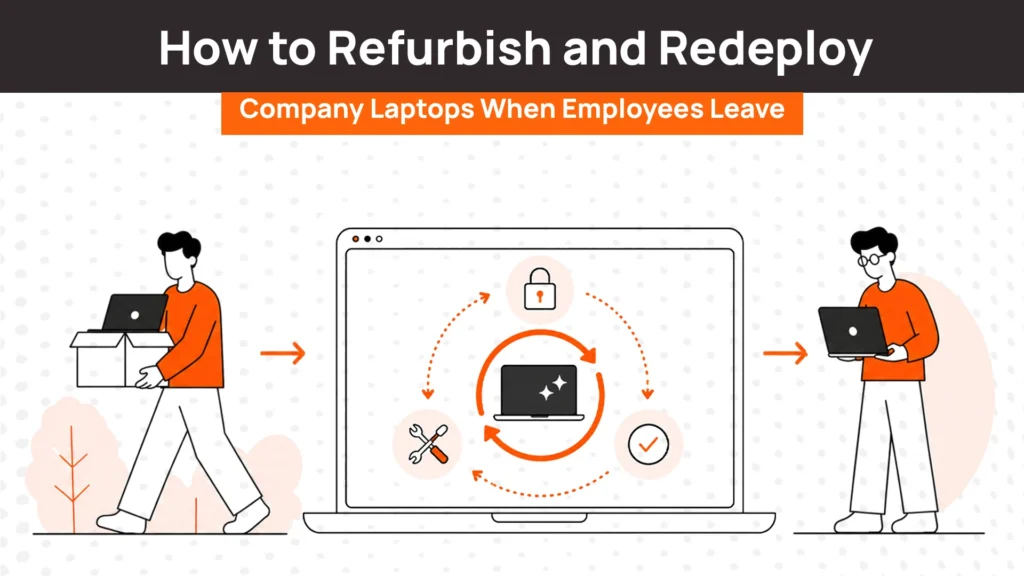
The Laptop Refurbishment and Redeployment Process at a Glance
Before getting into each step, here’s the full workflow so you can see how the stages connect.
| Stage | What Happens |
| 1. Retrieve | Device returned from departing employee with all accessories |
| 2. Inspect | Physical condition, battery health, age, and component check |
| 3. Data wipe | Certified erasure of all company and personal data |
| 4. Repair | Battery, keyboard, SSD, or other component fixes as needed |
| 5. Reimage | Fresh OS install, security policies, business apps configured |
| 6. Quality check | Verify everything works before it goes back into stock |
| 7. Update inventory | Asset record updated with condition, configuration, availability |
| 8. Redeploy or retire | Assign to next hire, store for future use, or route to ITAD |
Each step feeds the next. Skip inspection and you’ll reimage a device that needs repairs. Skip data wiping and you’ll hand a new employee a laptop with the previous person’s files. The workflow only works when every step is followed in order.
Step 1: Retrieve the Laptop Securely
Refurbishment can only begin once the device is actually back in your hands and how it comes back matters.
A good retrieval means more than just getting the laptop. It means getting it in a condition you can work with. That requires a few things to happen right:
All accessories returned with the device
Chargers, dongles, docking stations. Anything issued with the laptop should come back with it. This is easy to overlook during offboarding but frustrating to reconcile later.
Asset verification on arrival
When the device arrives, cross-check the serial number against your asset register. Confirm it’s the right device, assigned to the right employee. This sounds obvious — but mislabeled or mixed-up returns happen, especially in bulk offboarding situations.
Chain of custody documented
Record who shipped it, when it arrived, who received it, and its visible condition on arrival. This protects you if the employee later disputes a damage charge. It also matters for compliance if data wiping needs to be audited.
Condition noted before anything else is done
Note physical damage before the device goes into the refurbishment queue. Don’t start repairs without documenting the as-received state.
One practical tip: if you’re using a retrieval service or lifecycle platform, this documentation should be automatic. If you’re handling it manually, build a simple arrival form your team fills out for every returned device.
Step 2: Inspect the Laptop
Not every returned laptop should be refurbished. And the only way to know is a proper inspection before you commit time and money.
Run through these checks systematically:
Physical condition:
- Screen: any cracks, dead pixels, or backlight issues?
- Chassis: dents or structural damage?
- Keyboard: all keys working, no missing keycaps?
- Ports: USB, charging port, headphone jack all functional?
- Hinge: does it open smoothly without creak or wobble?
Internal health:
- Battery: charge cycle count and capacity remaining (anything below 70% of original capacity warrants replacement)
- SSD: check for bad sectors or read/write slowdowns
- RAM: run a quick memory test if the device has been slow or crashing
Age and specification:
- How old is the device?
- What are its specs relative to your current configuration requirements?
- Is the hardware capable of running your standard software stack for another 2-3 years?
Warranty status:
- Is the device still under warranty?
- If not, what’s the repair cost exposure?
After inspection, you’ll have one of three outcomes: the device is ready for data wipe and reimaging, it needs repairs first, or it should be retired. Don’t skip this step by assuming everything that comes back is redeployable. Some devices aren’t worth the investment.
Step 3: Back Up and Securely Wipe Company Data
Before anyone touches the device for repairs or reimaging, data needs to come off it. This isn’t optional, and a factory reset isn’t sufficient.
Why factory reset isn’t enough
A factory reset removes the operating system partition and user-visible files. But it doesn’t overwrite the underlying storage. With freely available recovery tools, a determined person can often retrieve data from a factory-reset drive. That’s a compliance exposure you don’t want.
What to do instead
Use certified data erasure software that meets NIST 800-88 standards. This overwrites all storage sectors, including areas not visible to the operating system. After erasure, generate a certificate of data destruction — a document recording the serial number, date, method used, and who performed the wipe. Keep this on file.
Before wiping, check if backup is needed
Most departing employees have been offboarded from company systems before the device comes back, so there’s usually nothing to preserve. But in some cases like project files, local configurations, compliance records. IT may need to extract specific data before wiping. Confirm with your compliance or legal team if unsure.
One thing often missed
If the device has an MDM profile active, remove the device from your MDM after wiping. If you skip this, the new user’s enrollment may conflict with the previous assignment, causing configuration issues down the line.
Step 4: Repair and Refurbish the Device
Once data is clean, you can assess what the device physically needs. Refurbishment is about making the device functionally equivalent to new.
The most common repairs worth doing:
Battery replacement is usually the highest-ROI repair. A new battery costs $50-100 and restores a device’s full portable use. A device with a failing battery is annoying at best, unusable at worst. For most business laptops under 4 years old, battery replacement alone makes redeployment viable.
SSD upgrade makes sense if the device is running a small, slow drive and your standard configuration requires more storage. An SSD upgrade costs $60-120 and dramatically extends usable life.
RAM upgrade is worth considering for devices going to power users. More RAM is often the difference between a usable and sluggish experience.
Keyboard replacement is worth doing if keys are stuck, missing, or physically damaged. A replacement keyboard for most laptops runs $30-60 and avoids employee frustration from day one.
Physical cleaning is basically compressed air to clear vents, screen cleaning, chassis wipe-down. Cheap but matters. Handing someone a visibly dirty laptop sends the wrong signal.
The key decision rule: if the total repair cost exceeds 40% of what it would cost to buy a comparable refurbished device, reconsider. Repair for extension of life, not for the sake of it.
Step 5: Reimage and Prepare the Laptop for the Next Employee
A repaired, wiped device still isn’t ready for a new employee. It needs to be set up as if it just came out of the box; configured for your environment, not left as a blank machine.
Operating system installation
Install a clean, up-to-date OS using your standard base image. Don’t hand someone a machine running an outdated OS version.
MDM enrollment
Enroll the device in your MDM (Intune, Jamf) before it ships. This enables zero-touch deployment, which means the device configures itself when the new employee logs in. For remote teams, this is non-negotiable. You can’t send a device to someone in another country and ask them to configure it manually.
Security baseline
Apply your standard security policies like disk encryption, firewall rules, endpoint protection, certificates. These should be part of your MDM configuration profile, not manual steps.
Role-based application configuration
Where possible, pre-configure apps based on the role the device is assigned to. Engineering setups differ from sales setups. Doing this before the device ships saves the new employee time and reduces IT support tickets on day one.
Labeling
Update the physical asset tag if needed. Make sure serial number records are updated in your asset management system to reflect the new assigned user.
Step 6: Decide Whether to Redeploy or Retire
This is the decision most companies handle poorly. The default is to either redeploy everything or write off everything. Neither is right. Use this decision table:
| Device Condition | Recommended Action |
| Under 3 years old, good condition, battery above 75% | Reimage and redeploy immediately |
| 3-4 years old, functional, minor repairs completed | Refurbish and redeploy to standard use roles |
| 3-4 years old, functional but slower specs | Redeploy to lower-intensity roles (admin, support, temp workers) |
| Any age, repair cost exceeds 40% of replacement cost | Compare cost carefully, but most likely retire |
| Over 5 years old, struggles with current software | Retire. Route to ITAD or certified recycling |
| Physical damage affecting usability | Repair estimate first, retire if uneconomical |
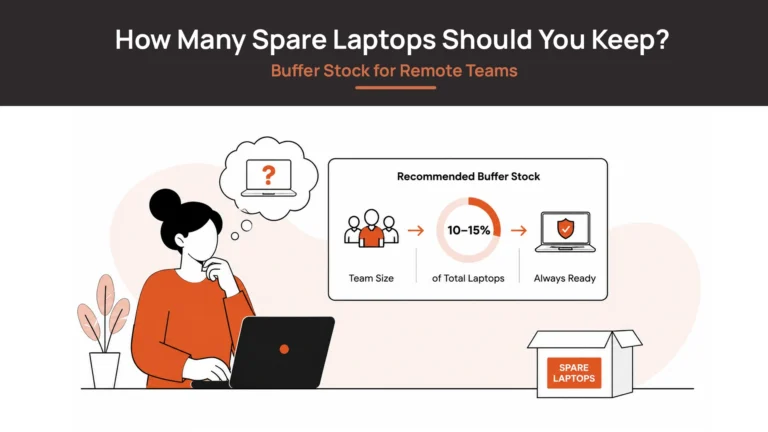
| Fully functional, excess inventory | Store in available inventory for next hire — don’t over-procure |
Not everything is worth retrieving in the first place. The same logic applies post-retrieval. Not everything retrieved is worth refurbishing. The goal is maximizing value, not forcing devices back into circulation they’re not fit for.
Best Practices for Standardizing Laptop Redeployment
One returned laptop is manageable. Twenty a month requires a system.
The difference between companies that handle this well and those that don’t isn’t effort — it’s standardization.
Build a consistent inspection checklist
Every device that comes back gets the same checks, done the same way, recorded in the same place. No variation based on who’s working that day.
Create role-based reimage templates
Engineering, sales, operations, HR. Each should have a pre-built configuration profile. When a device is assigned to a role, the template applies automatically. Manual configuration doesn’t scale.
Track device history in your asset management system
Every device should have a record: when it was purchased, who had it, what repairs were done, when it was reimaged, what condition it was in on return. When something goes wrong, you need this history to diagnose it.
Set a redeployment SLA
How long should it take to go from device arrival to ready-to-ship? 3 business days is achievable for most devices. Setting a target creates accountability and keeps inventory moving.
Separate your inventory tiers
Ready-to-deploy, needs-repair, under evaluation, and retire-pending should be four distinct states in your asset tracker. Devices sitting ambiguously in storage are a sign this isn’t working.
Review your refurbishment economics quarterly
What’s your average refurbishment cost? What’s your redeployment rate? How many devices did you retire versus redeploy? These numbers tell you whether the process is working and where it’s breaking down.
How RemoAsset Helps Manage Laptop Redeployment
Building a repeatable refurbishment and redeployment process is significantly easier when every stage is managed in one system rather than across spreadsheets, email chains, and disconnected tools.
RemoAsset handles the full chain, which starts with retrieval triggered by HRIS offboarding events, real-time tracking as devices return, condition logging on arrival, repair coordination, storage management, and redeployment to the next hire. Inventory visibility is live: you can see exactly how many devices are available, in repair, in storage, or deployed at any given moment.
When a new hire is confirmed, IT can assign a refurbished device from available inventory instead of defaulting to procurement. When procurement is needed, it’s based on actual inventory gaps.
The goal is simple: every device that comes back should have a clearly defined next step, and that step should happen without someone manually coordinating it. That’s what a connected lifecycle system does.
FAQs
How many times can a company redeploy a laptop?
There’s no fixed number. It depends on device condition, not cycle count. A well-maintained MacBook can realistically go through 3-4 redeployments over 6-7 years. A budget Windows laptop might only support 1-2 before repairs become uneconomical. Track condition at each return and make decisions from data, not assumptions.
Should every returned laptop be refurbished?
No. Devices over 5 years old, devices with repair costs exceeding 40% of replacement value, or devices with specs too outdated for your current software requirements should be retired. The goal is maximizing value, not forcing unsuitable devices back into use.
Is reimaging better than a factory reset?
Always. A factory reset leaves residual data recoverable with basic tools. Reimaging from a clean OS image removes everything and ensures the device starts from a known good state. For business devices, reimaging is the only acceptable approach, both for security and for consistency of configuration.
How long should businesses keep employee laptops?
Most business laptops have a practical useful life of 4-5 years for standard roles. Performance-intensive roles (engineering, design, video) may justify 3-year refresh cycles. Beyond 5 years, battery degradation, software compatibility issues, and security patch limitations typically make replacement more cost-effective than continued refurbishment.
What should be checked before redeploying a laptop?
At minimum: battery health (above 70% capacity), screen condition, keyboard and port functionality, SSD health, updated OS with current security patches, MDM enrollment confirmed, and all previous user data wiped with a destruction certificate on file.
When should a laptop be retired instead of refurbished?
When repair costs exceed 40% of replacement cost, when the device is over 5 years old with degrading hardware, when specifications can no longer run your standard software stack, or when refurbishment history shows repeat failures in the same components. Retirement means routing through ITAD for certified data destruction and either resale or recycling.
How much money can businesses save by redeploying laptops?
Depends on fleet size and retrieval rate. A company with 100 employees and 25% annual turnover successfully retrieving and redeploying 80% of returned devices at $150 refurbishment cost versus $1,500 new purchase. This saves roughly $24,750 annually on procurement alone. Add residual value from ITAD resale on retired devices and the number grows further.
Should accessories be refurbished and reused as well?
Chargers and cables: yes, if they’re functional and in good condition. Docking stations: yes, worth refurbishing given their cost. Mice and keyboards: evaluate condition. Replacement cost is low enough that anything questionable should just be replaced. Monitors: worth retrieving for high-value displays, probably not worth international shipping for basic ones.